Sometimes, I like to record music and videos that will be left as pieces of memory to reminisce about. I am neither a professional music producer nor a content creator, but I have managed to learn just enough to do what I wanted.
As I worked on another one before finishing this year, I wanted to try a new tool. As one could guess from the title, I gave Zrythm a shot.
Switching to Zrythm
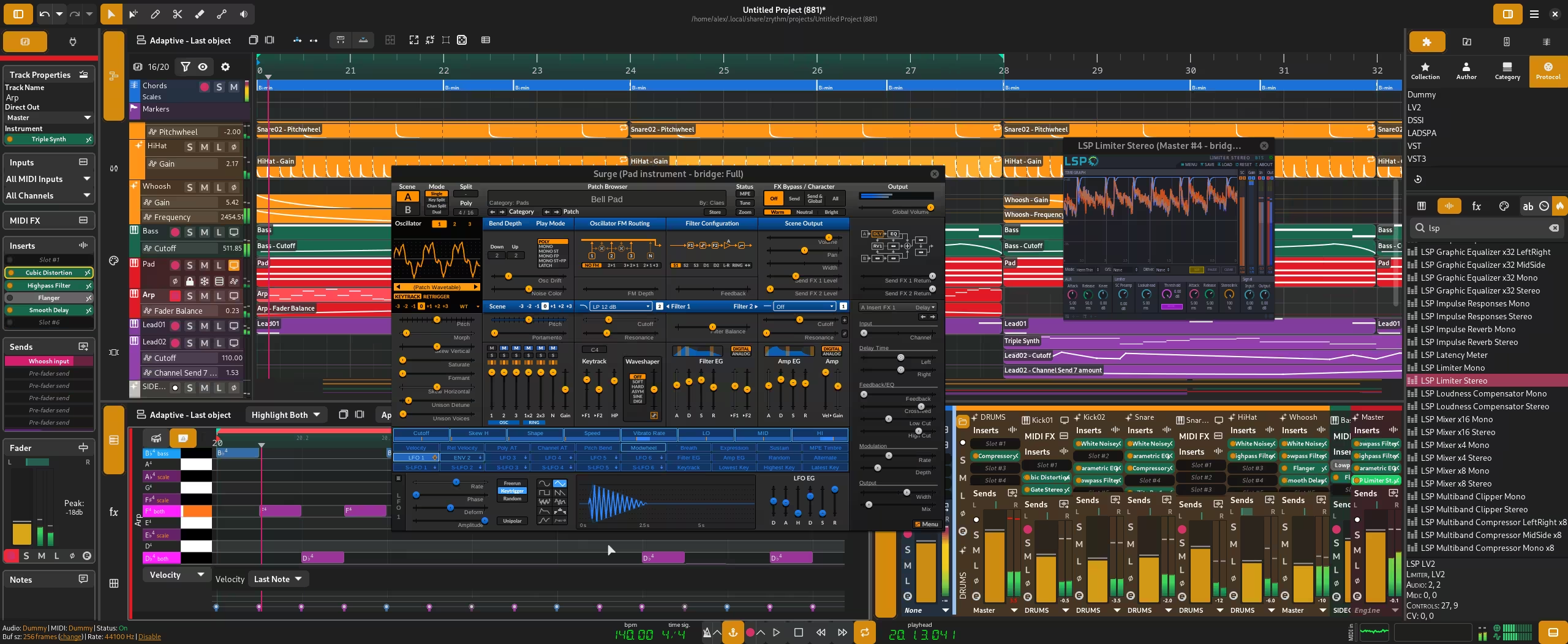
Zrythm is a digital audio workstation tailored for both professionals and beginners, offering an intuitive interface and robust functionality.
I doubt many people use Linux for audio production, but I happened to be one of them that do. Ardour has been my choice of tool for a while, but one thing always bothered me: its use of GTK 2, which reached end of its life several years ago. Granted, it uses (and now mandates the use of) its own localised version of the long-obsolete library called YTK, but it just felt like delaying the eventual need to migrate to a newer technology. It does work fine right now, but I wanted to learn other ways to achieve my goal.
That is where Zrythm came in. It is currently undergoing a major rewrite from C to C++ and from GTK 4 to Qt 6, but I still decided to give its GTK-based stable version (v1.0.0 at the time of writing) a go.
Creating a project and configuring the system
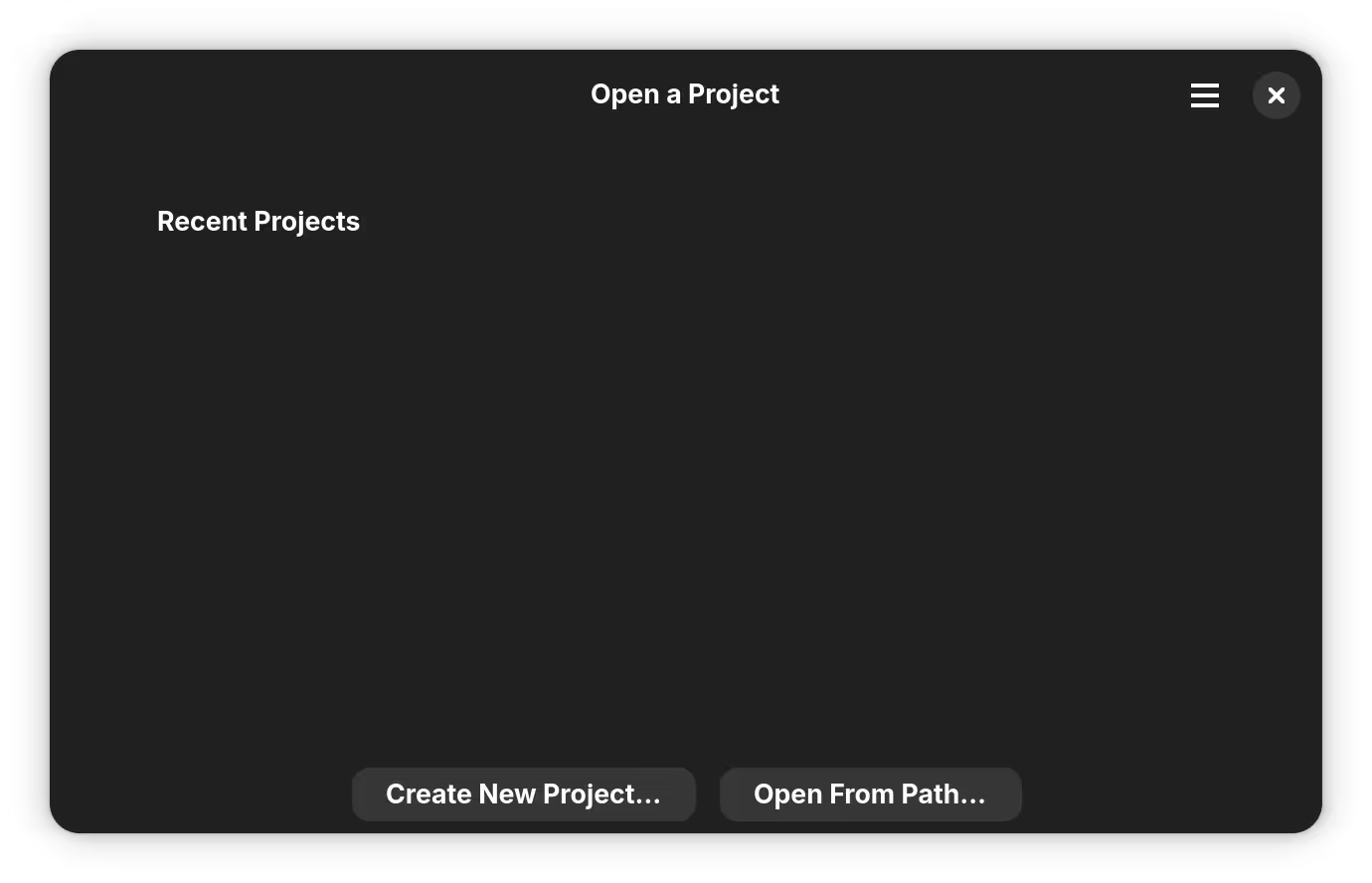
A simple window showed up as I started the application. I went ahead and created a new project.
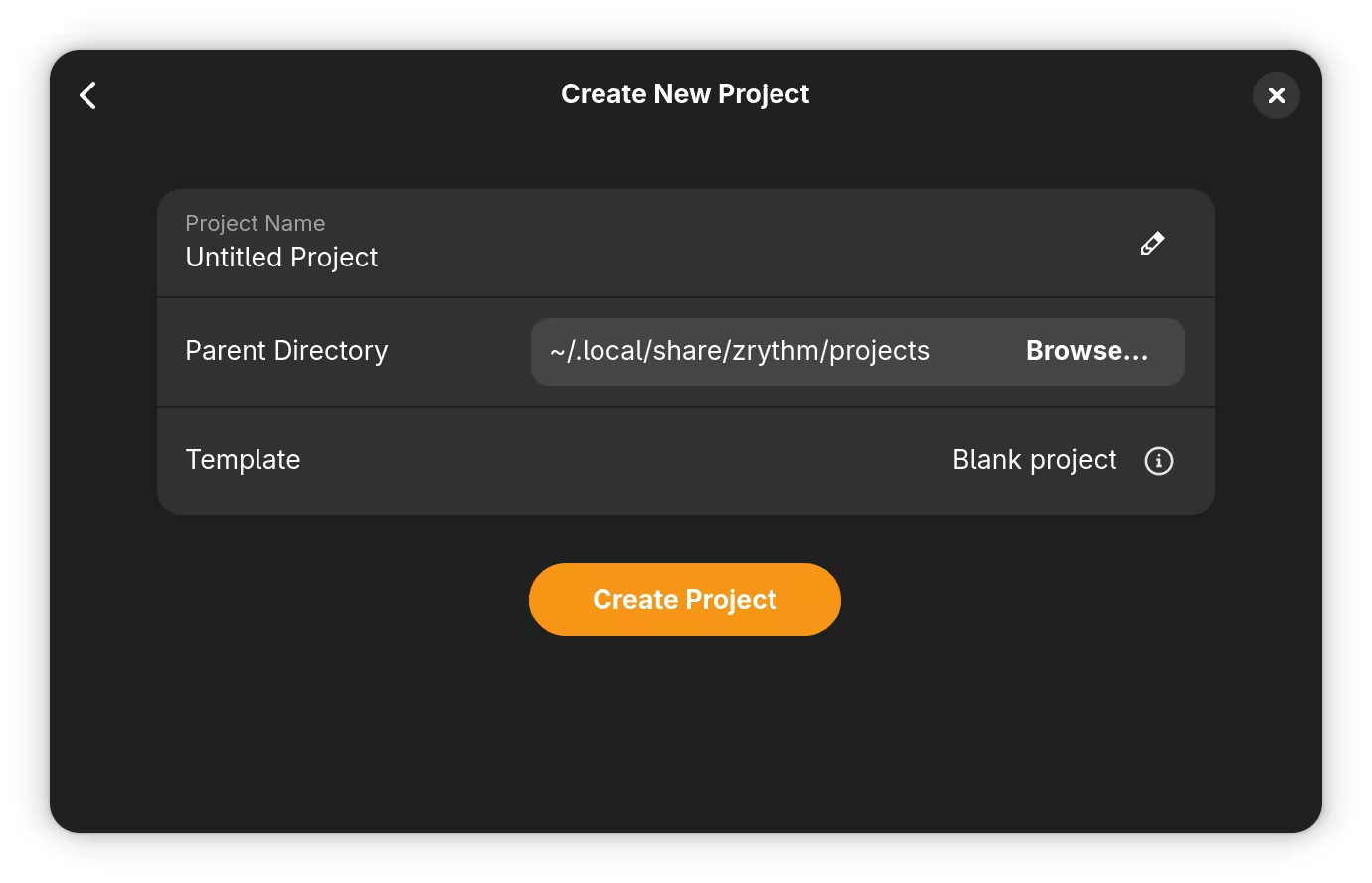
After entering some details, a new project was created.
Two errors greeted me as I was about to get started, however.
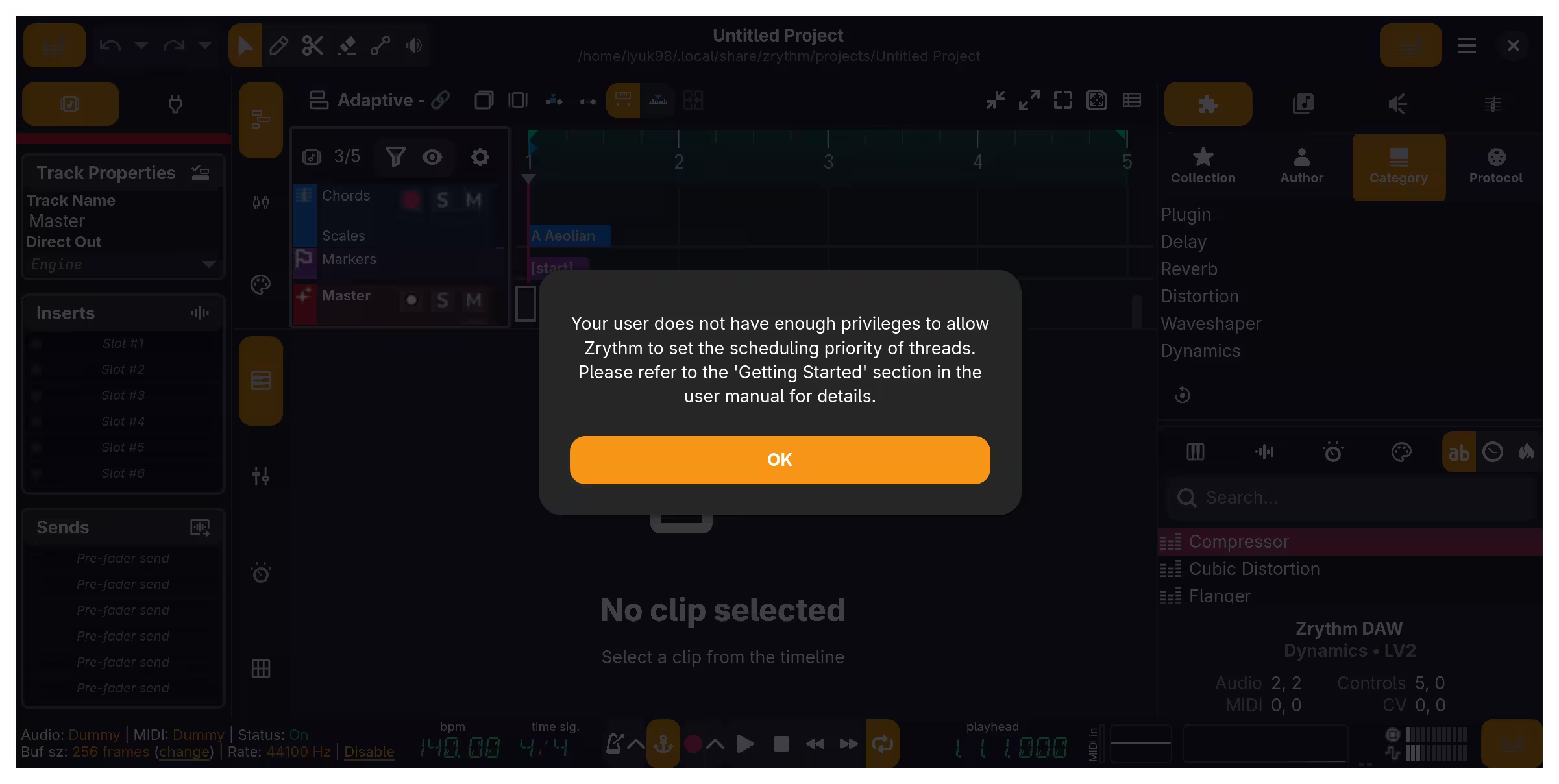
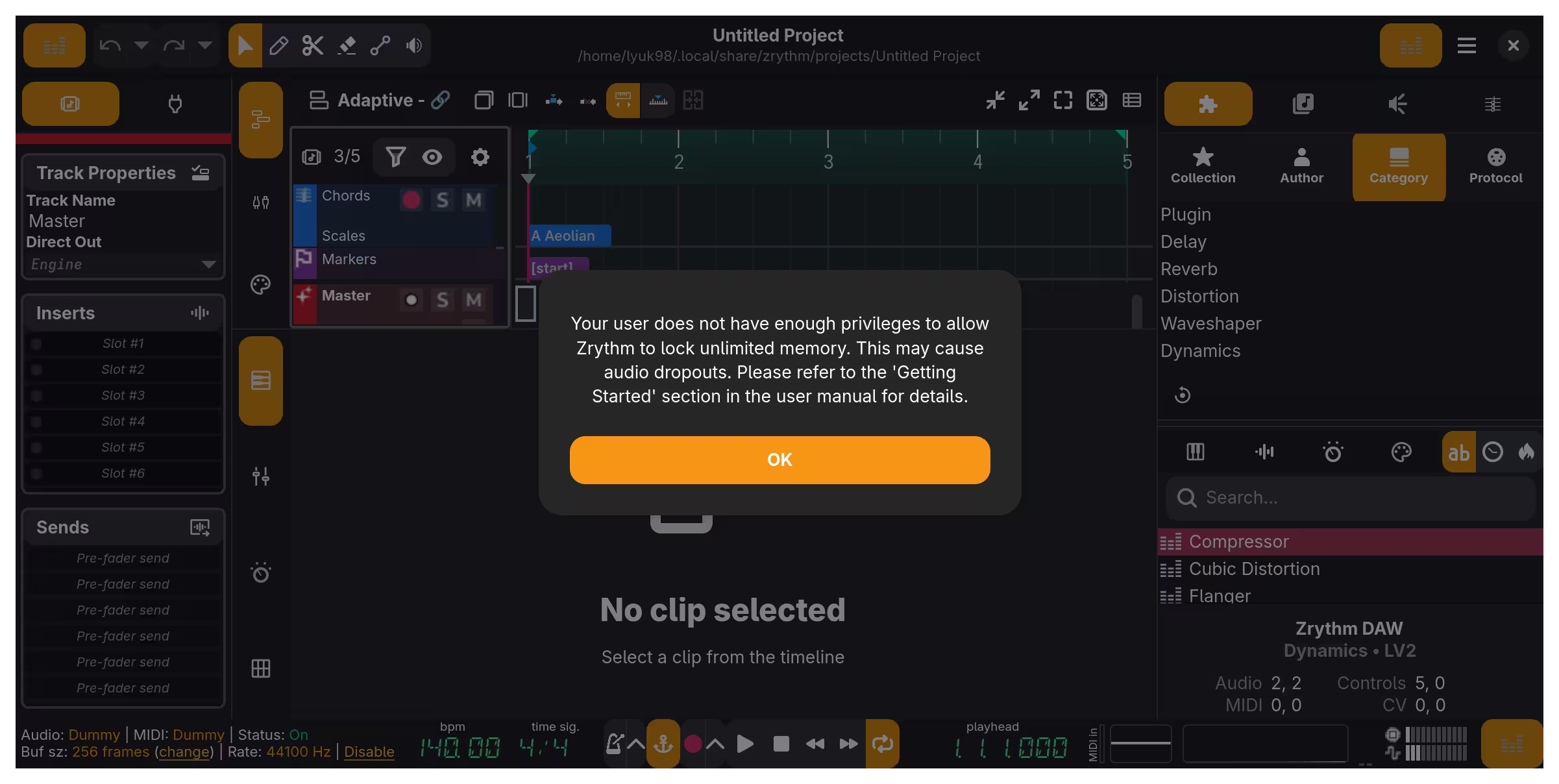
My system uses PipeWire as the sound server and, fortunately, all I had to do to enjoy the increased limits was to add my user to the group pipewire.
{ config, ... }:
{
  users.users.lyuk98.extraGroups =
    let
      # Retain only valid group names
      ifTheyExist = groups: builtins.filter (group: builtins.hasAttr group config.users.groups) groups;
    in
    ifTheyExist [
      "adbusers"
      "libvirtd"
      "networkmanager"
      "pipewire"
      "tss"
      "wheel"
    ];
}
One caveat, though, was that the limit on how much memory can be locked was set to about 4 gigabytes instead of unlimited; I decided not to do anything for now, however, unless I come across any problem about it.
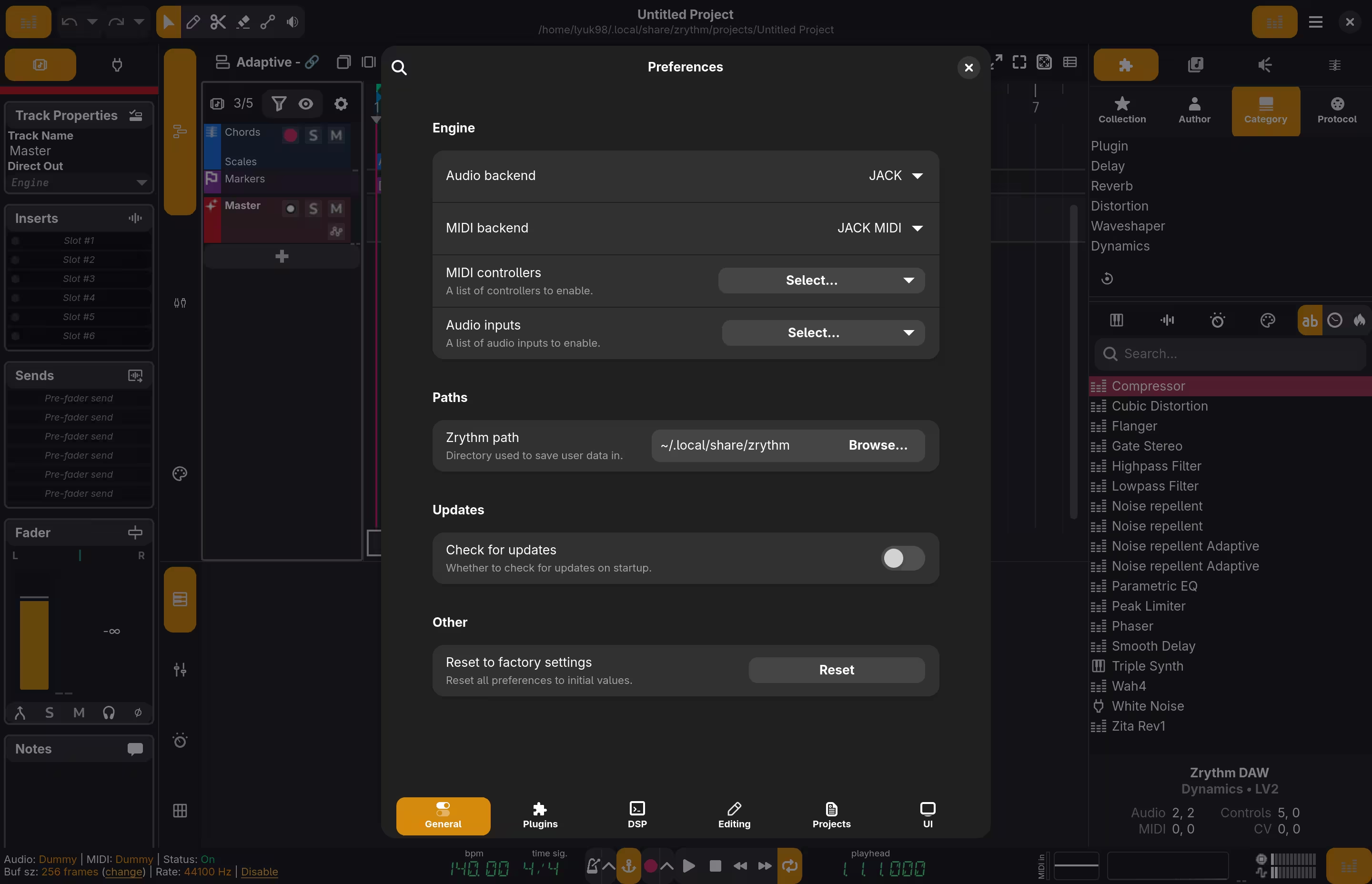
Lastly, I set the audio and Midi backend to Jack, which PipeWire will take care of.
Adding audio plugins
There are three problems I have previously encountered during my recording sessions:
- I do not (properly, at least) play drums, which I still wish to include in my recording.
- I connect the instrument directly to my audio interface; it is much quieter than recording with a microphone in front of an amplifier, but it sounds terrible without some sort of amplifier emulation.
- My guitar, having single-coil pickups, is susceptible to a great amount of hum; it especially stands out when some sort of distortion (such as fuzz) is involved in the signal chain.
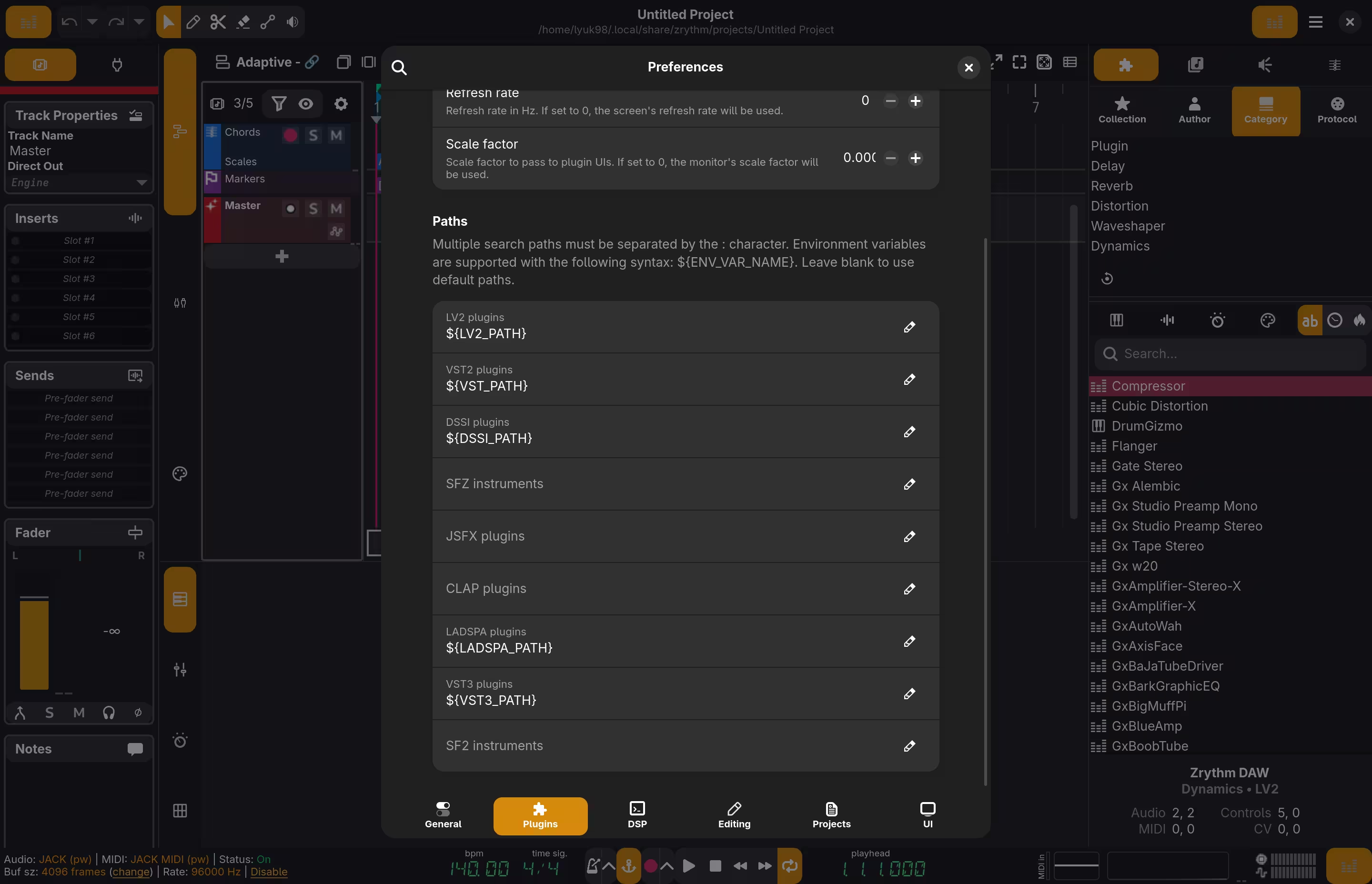
My solution was to employ audio plugins: DrumGizmo, Guitarix, and Noise Repellent, which are LV2 plugins. Because Zrythm could not find them under non-FHS-compliant NixOS, I copied and modified a solution on NixOS Wiki to make them discoverable.
{
  pkgs,
  lib,
  config,
  ...
}:
{
  # Add environment variables for audio plugins
  home.sessionVariables =
    let
      makePluginPath =
        format:
        (lib.makeSearchPath format [
          "${config.home.profileDirectory}/lib"
          "/run/current-system/sw/lib"
        ])
        + ":${config.home.homeDirectory}/.${format}";
    in
    {
      DSSI_PATH = makePluginPath "dssi";
      LADSPA_PATH = makePluginPath "ladspa";
      LV2_PATH = makePluginPath "lv2";
      LXVST_PATH = makePluginPath "lxvst";
      VST_PATH = makePluginPath "vst";
      VST3_PATH = makePluginPath "vst3";
    };

  # Add audio plugins
  home.packages = with pkgs; [
    drumgizmo # DrumGizmo LV2 plugin
    guitarix # Guitarix
    gxplugins-lv2 # Extra LV2 plugins to complement Guitarix
    noise-repellent # LV2 plugins for noise reduction
  ];
}
I could then let the application find them by providing the paths as environment variables.
Recording tracks
It was time to record some tracks, while overcoming whatever challenges Zrythm may throw at me.
Creating tracks for the drums
While DrumGizmo provides a way to play drums, it does not have drums themselves. A compatible drumkit is required, where I chose DRSKit.
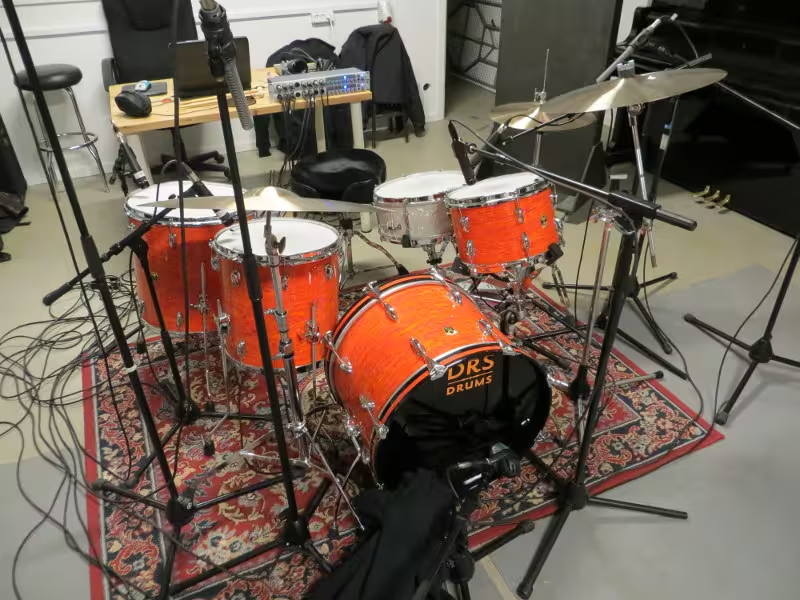
To use the drumkit, I downloaded and extracted an archive.
[lyuk98@framework:~]$ curl --remote-name https://drumgizmo.org/kits/DRSKit/DRSKit2_1.zip
[lyuk98@framework:~]$ unzip DRSKit2_1.zip
The drumkit was ready, and I double-clicked the DrumGizmo plugin at the bottom right to create an instrument track.
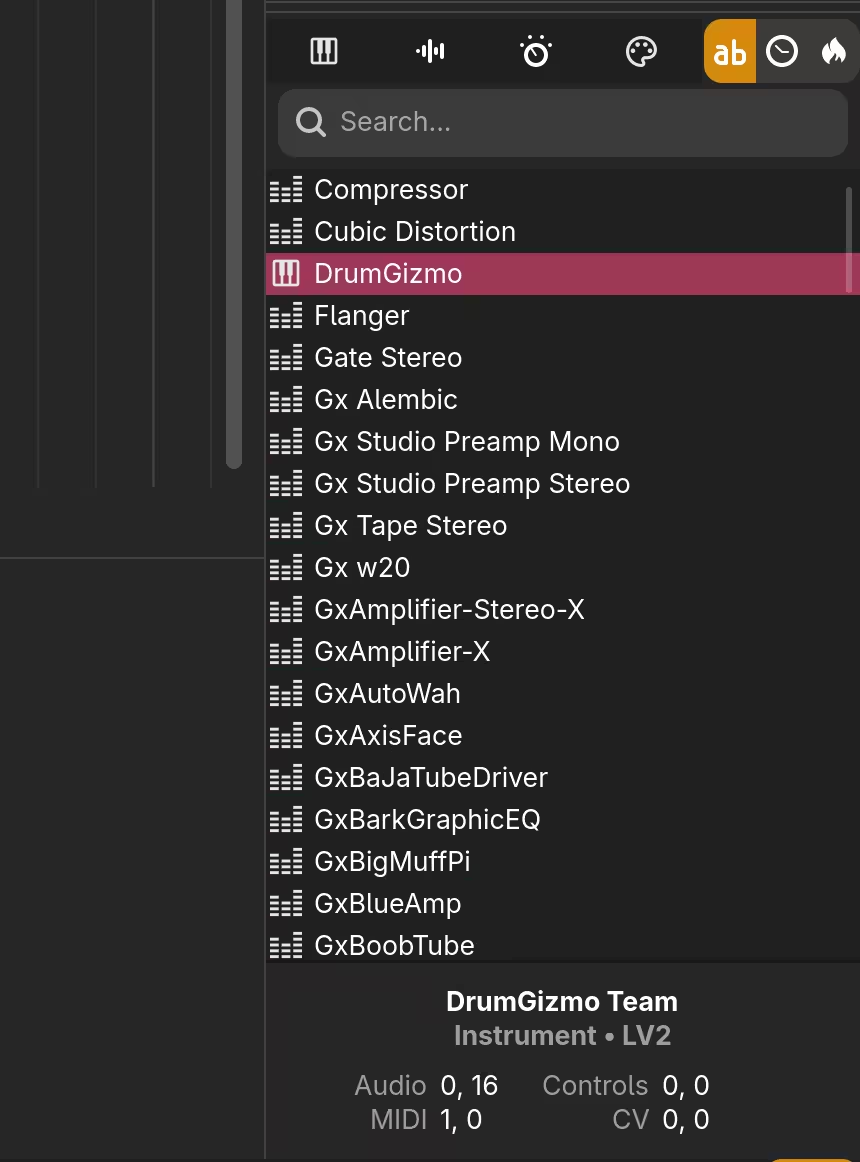
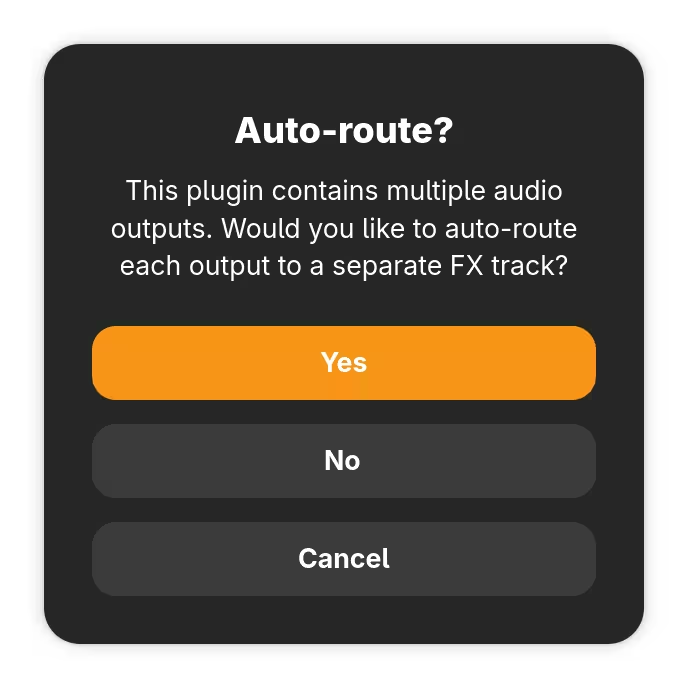
I was then asked to let Zrythm do some routing for me. I clicked “No” as I decided to do it myself.
The DrumGizmo’s instrument UI showed up afterwards.
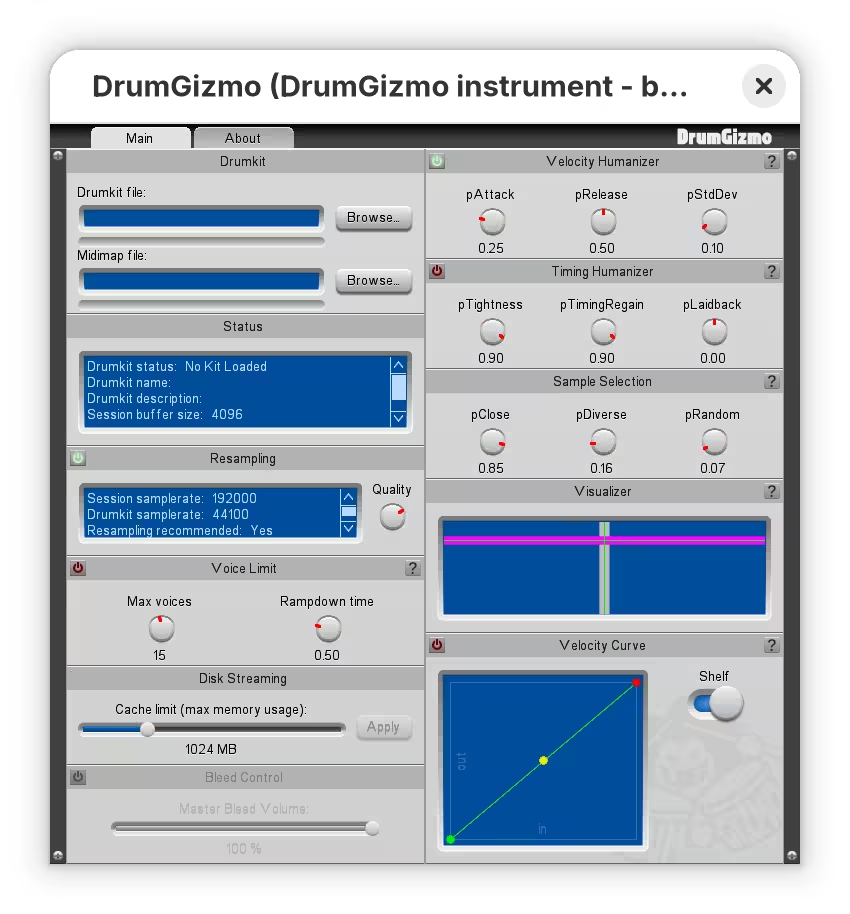
Since I have previously used this plugin with Ardour, I was pretty familiar with its interface. I set drumkit and midimap files, and also tweaked a few settings to my preference.
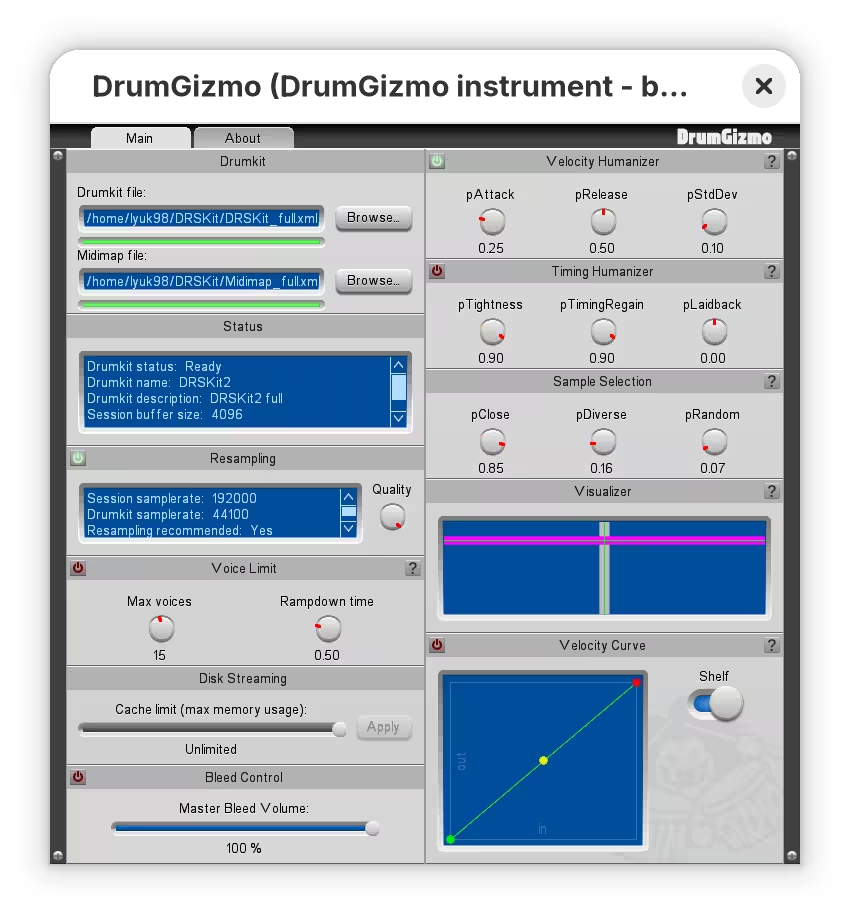
“Timing Humanizer” remained off for now, since it introduces a noticeable delay during the recording session. I decided to give it a go before exporting the final audio.
Routing audio
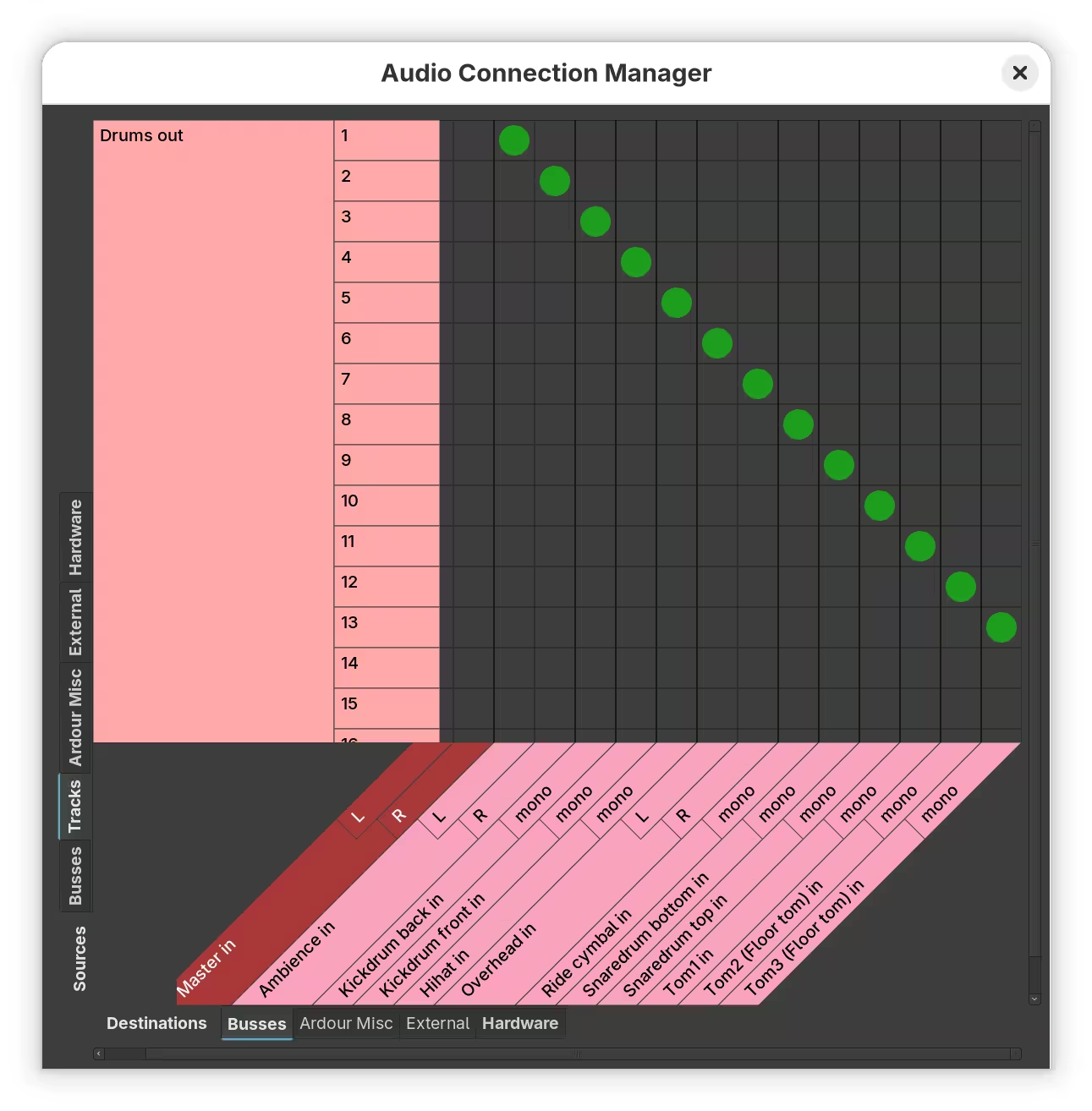
DrumGizmo provides 16 output channels; what they will be used for is up to each drumkit. For DRSKit, 13 of them are actually used, and what each channel is for is documented on its web page.
All microphones are connected to its own channel when loading the kit in DrumGizmo. 13 channels total. Remember to pan the relevant channels to give you a better stereo effect.
- Ch 1: Ambience left
- Ch 2: Ambience right
- Ch 3: Kickdrum back
- Ch 4: Kickdrum front
- Ch 5: Hihat
- Ch 6: Overhead left
- Ch 7: Overhead right
- Ch 8: Ride cymbal
- Ch 9: Snaredrum bottom
- Ch 10: Snaredrum top
- Ch 11: Tom1
- Ch 12: Tom2 (Floor tom)
- Ch 13: Tom3 (Floor tom)
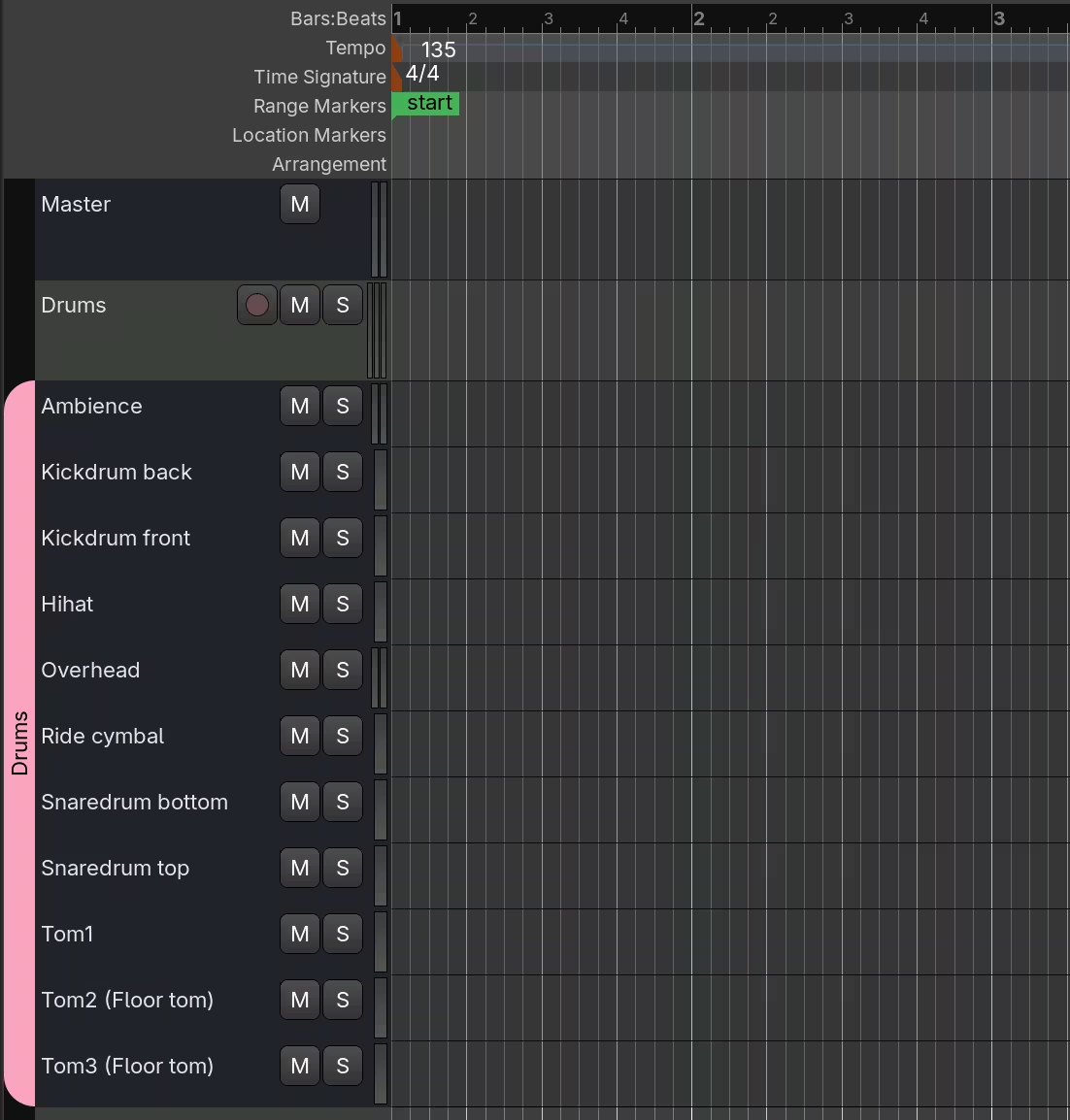
With Ardour, I created separate tracks for each channel, connecting them within the application’s interface.
| Tracks | Audio connections |
|---|---|
 |
 |
However, how it was done with Zrythm was quite different. I first added a folder track, put the instrument track (from DrumGizmo) under it, and added an audio group track with audio FX tracks representing each channel.
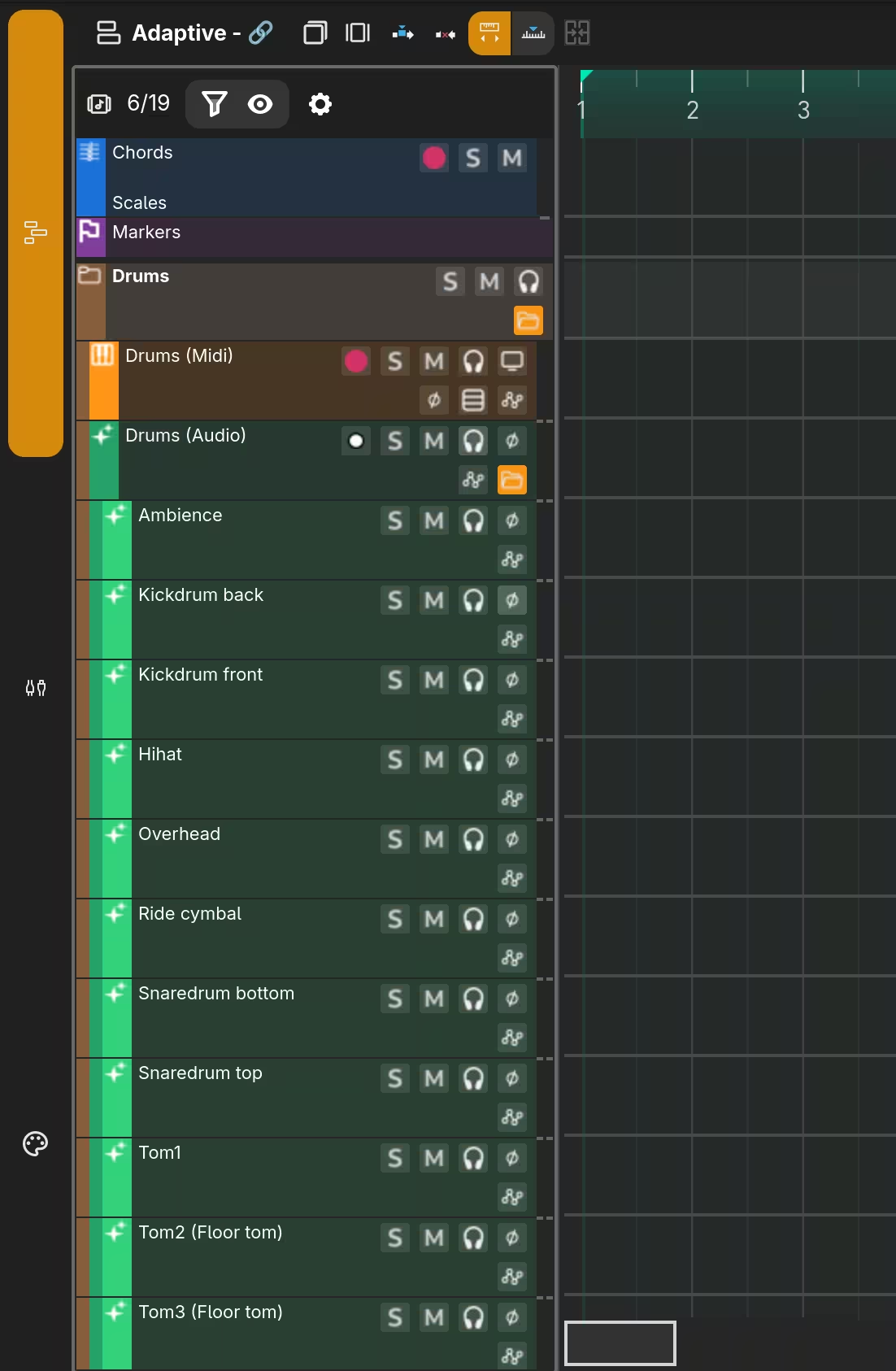
After double-clicking the instrument track to see its properties, I went to inspect the plugin.
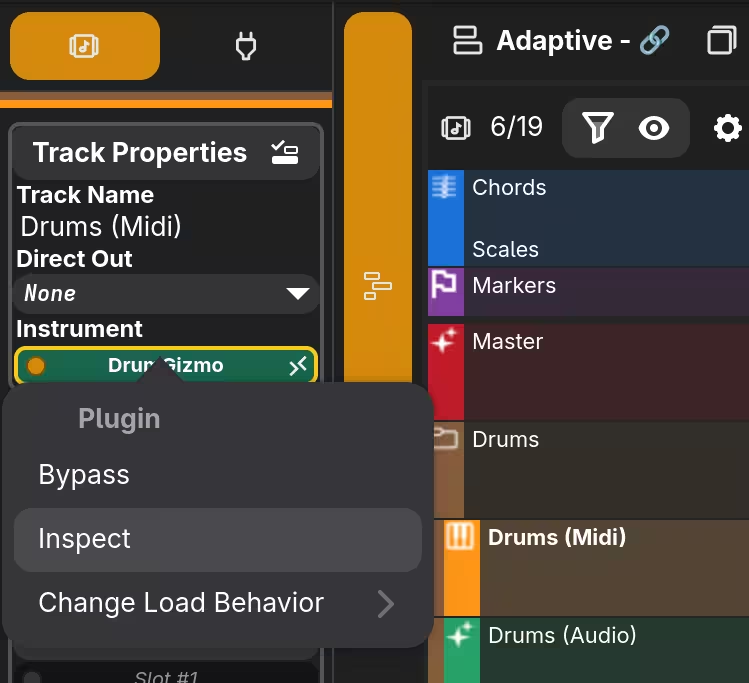
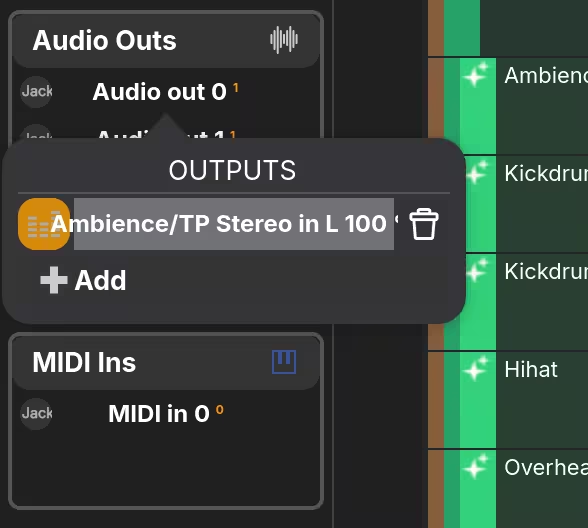
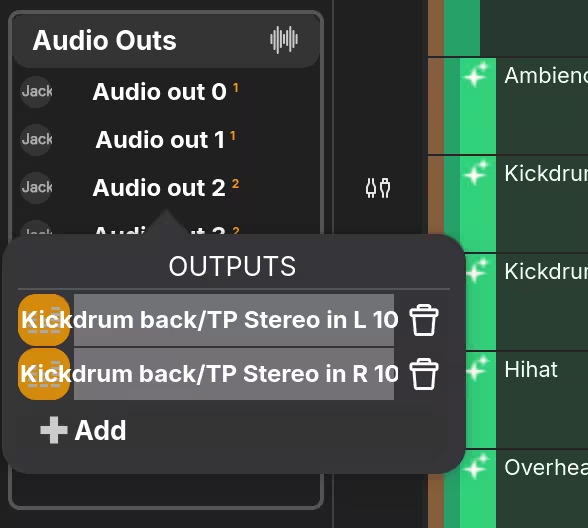
From there, I could route each output to corresponding channels.
| Result | Port selection |
|---|---|
 |
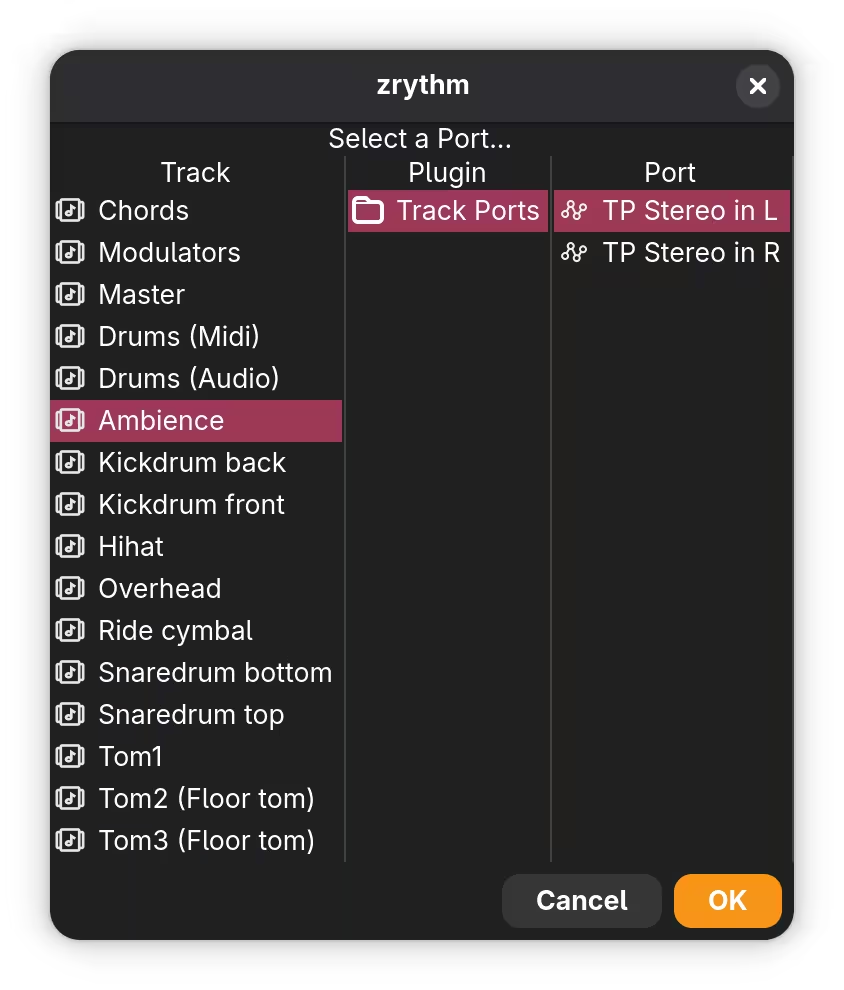 |
I could not find out how to make tracks mono, so I simply added both left and right channels when needed.
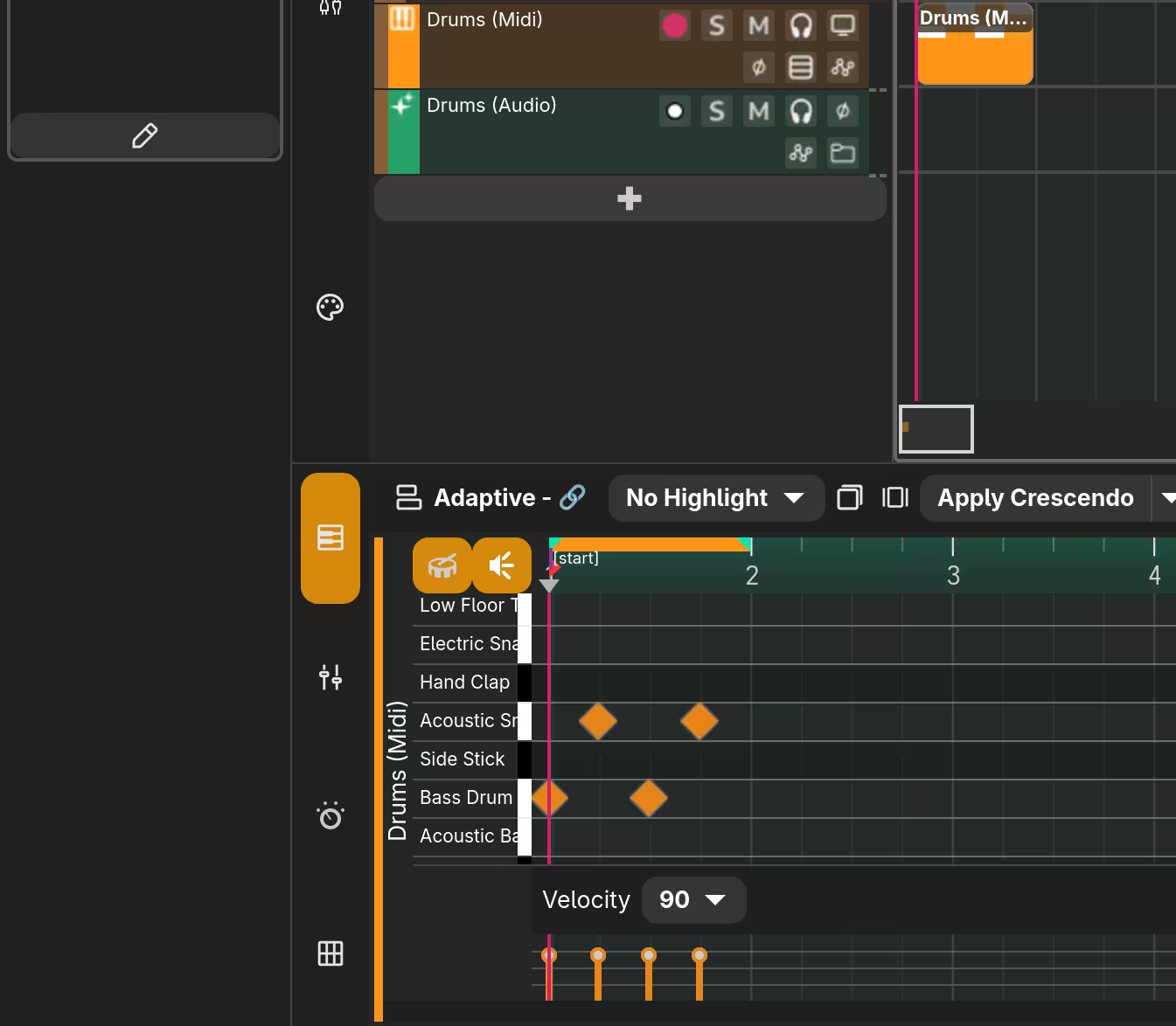
Entering notes and playing them back
Some notes were now in place, but I could not hear anything upon playback.
I have previously seen an error regarding Jack, and I thought something went wrong during audio routing, resulting in silence.
![An error message that says the following: “Failed to connect to left monitor output port - Details: - JACK: Failed to connect monitor output [left]: Overall operation failed”](https://images.lyuk98.com/82306a98-6c08-4dfa-b332-1d51eab5dd8d.avif)
My suspicion was that, because my system uses a custom PipeWire sink as part of audio enhancement, Zrythm could not route to the raw device. It could be solved by manually connecting them using qpwgraph.
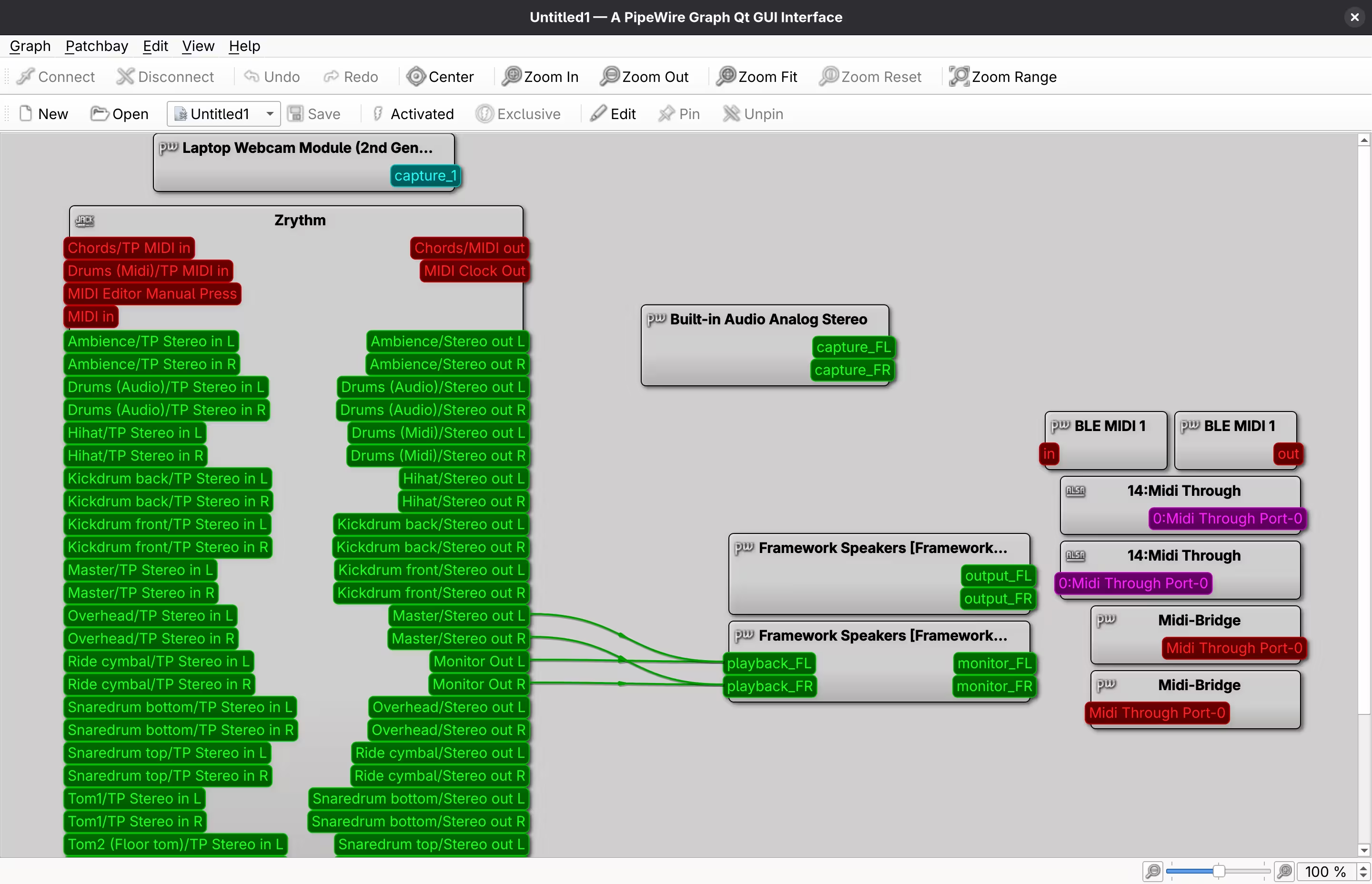
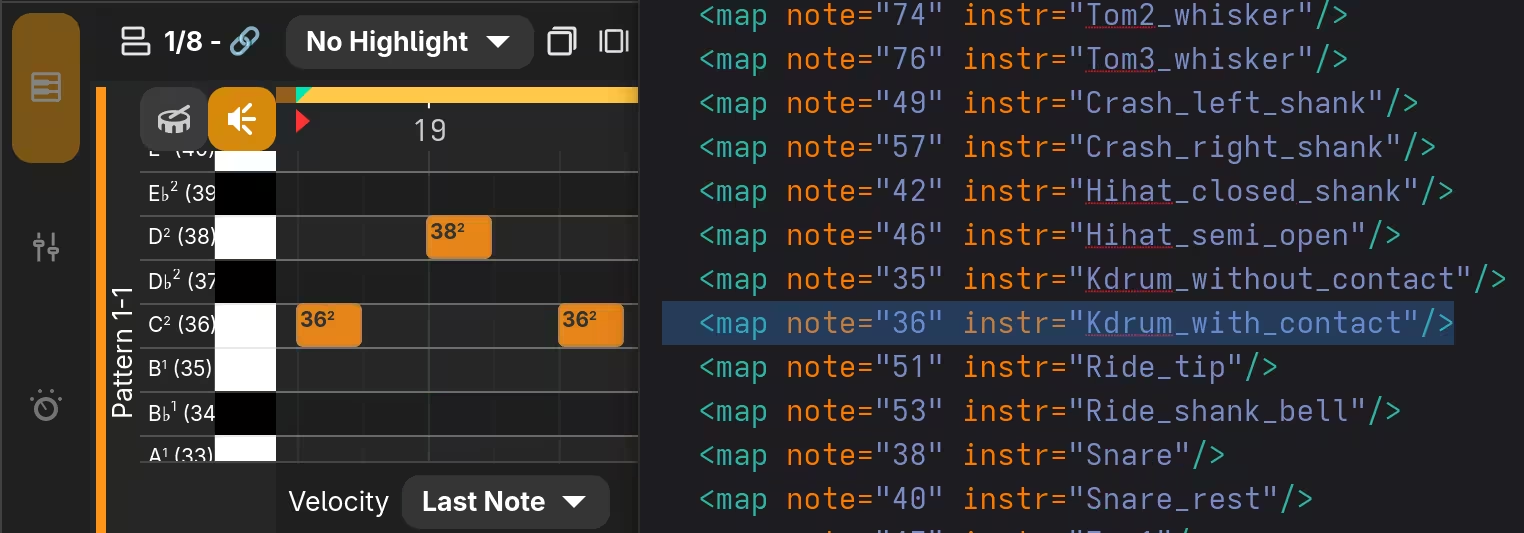
The drums were now audible, but I noticed that the application labelled some notes incorrectly. I have previously used Hydrogen with Ardour, but I decided to stick with Zrythm this time. As a consequence, I had to keep the midimap file around and continuously find numbers of the notes I wished to use.
Recording instruments
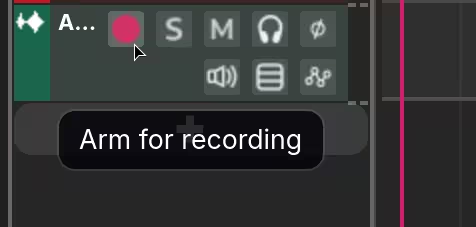
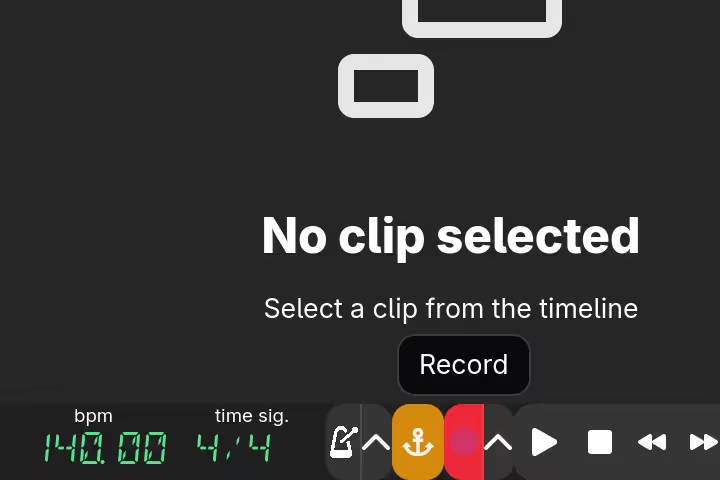
The Midi track was complete, and the next thing to do was to record a few audio tracks. Creating one was as easy as clicking + and selecting Add Audio Track. Adding a plugin could be done by dragging one to the Inserts section.
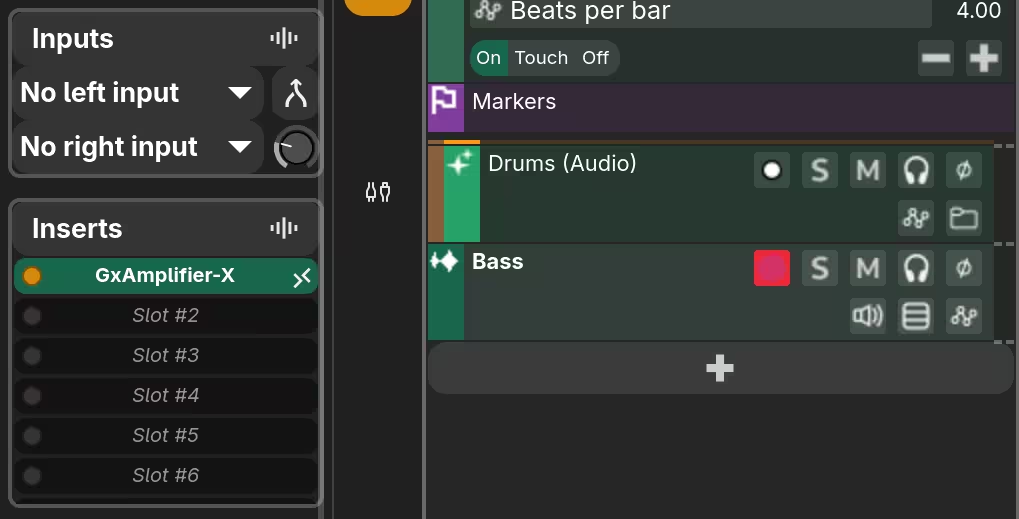
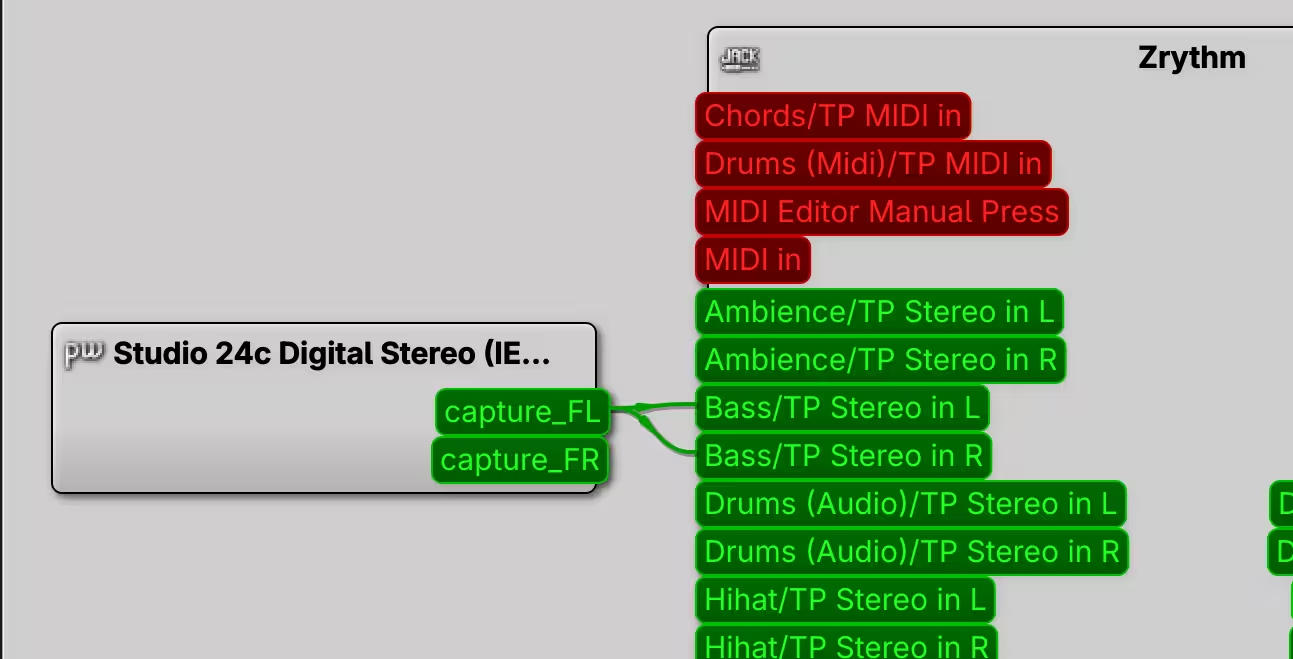
A problem, however, was that I could not figure out how to connect the instrument to the audio track, as fiddling with the Inputs section seemingly did not do anything. I later ended up once again relying on qpwgraph for routing.
The rest was similar to how it worked with Ardour.
| Arm for recording | Record |
|---|---|
 |
 |
Exporting audio
After all the recording and editing, the project was ready to be exported. The process could be started from the top-right menu.
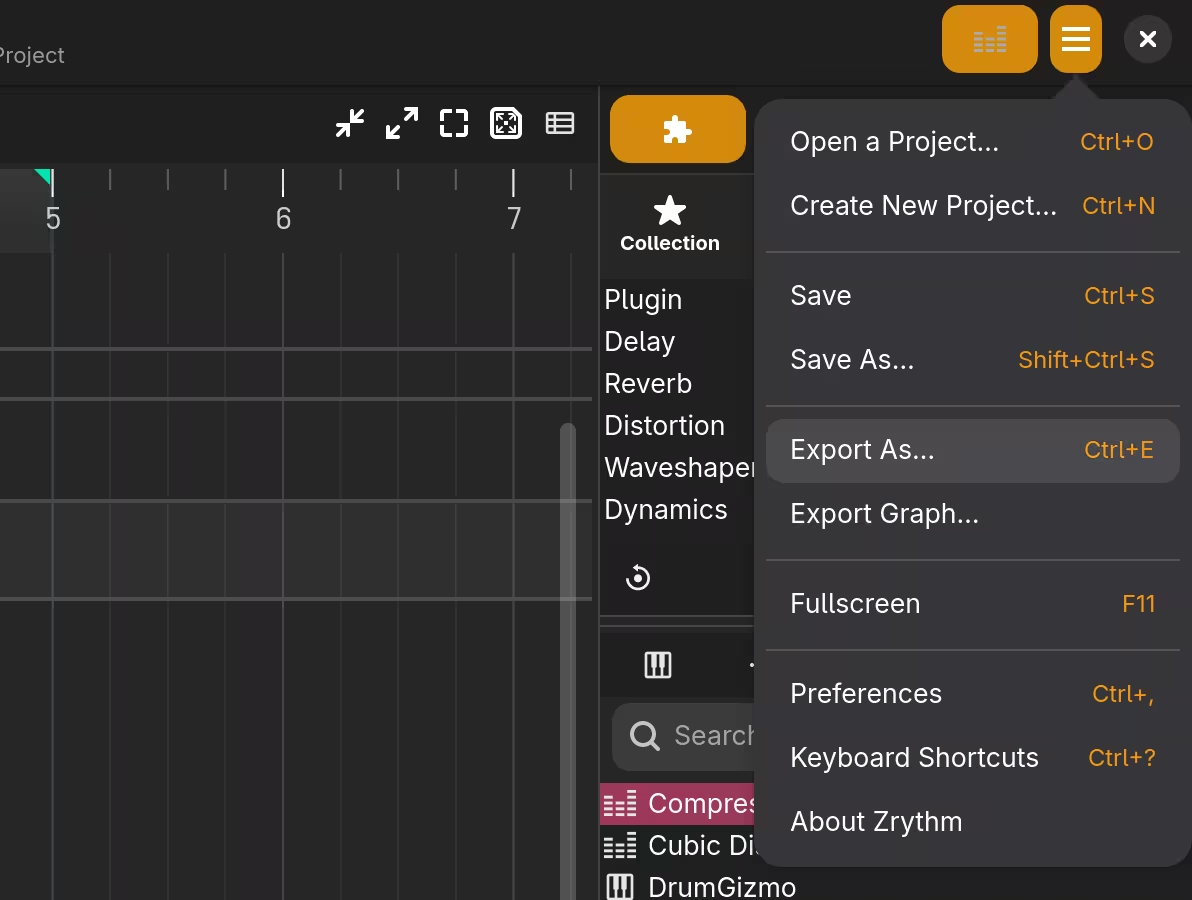
The process began after modifying some options, and the audio was ready in a few minutes.
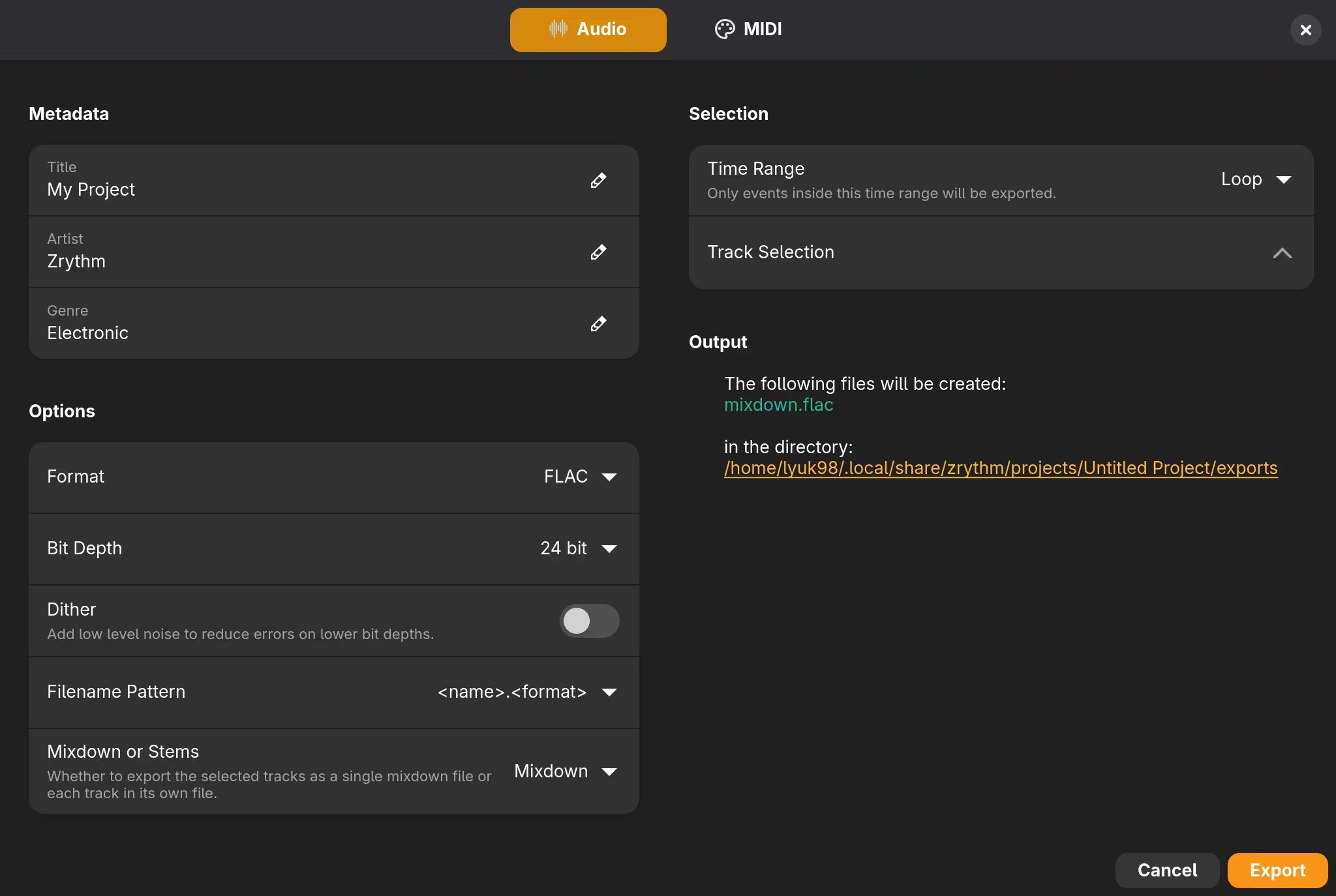
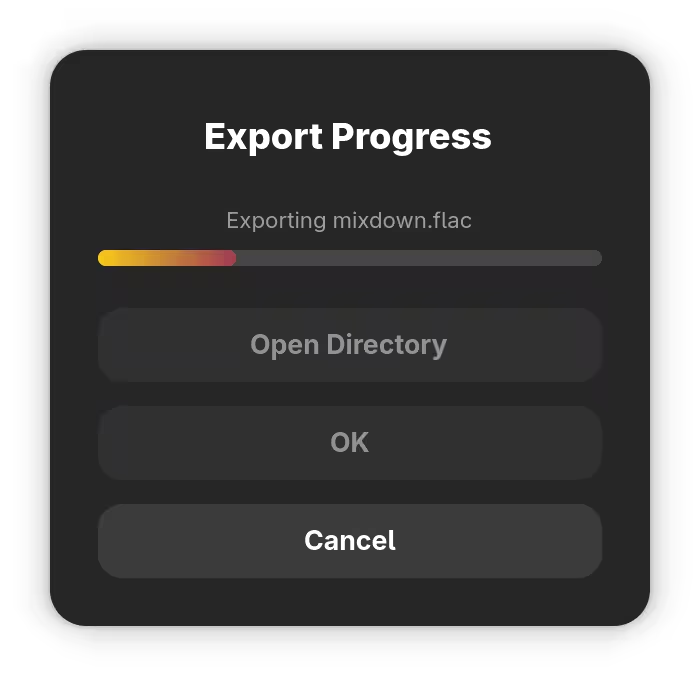
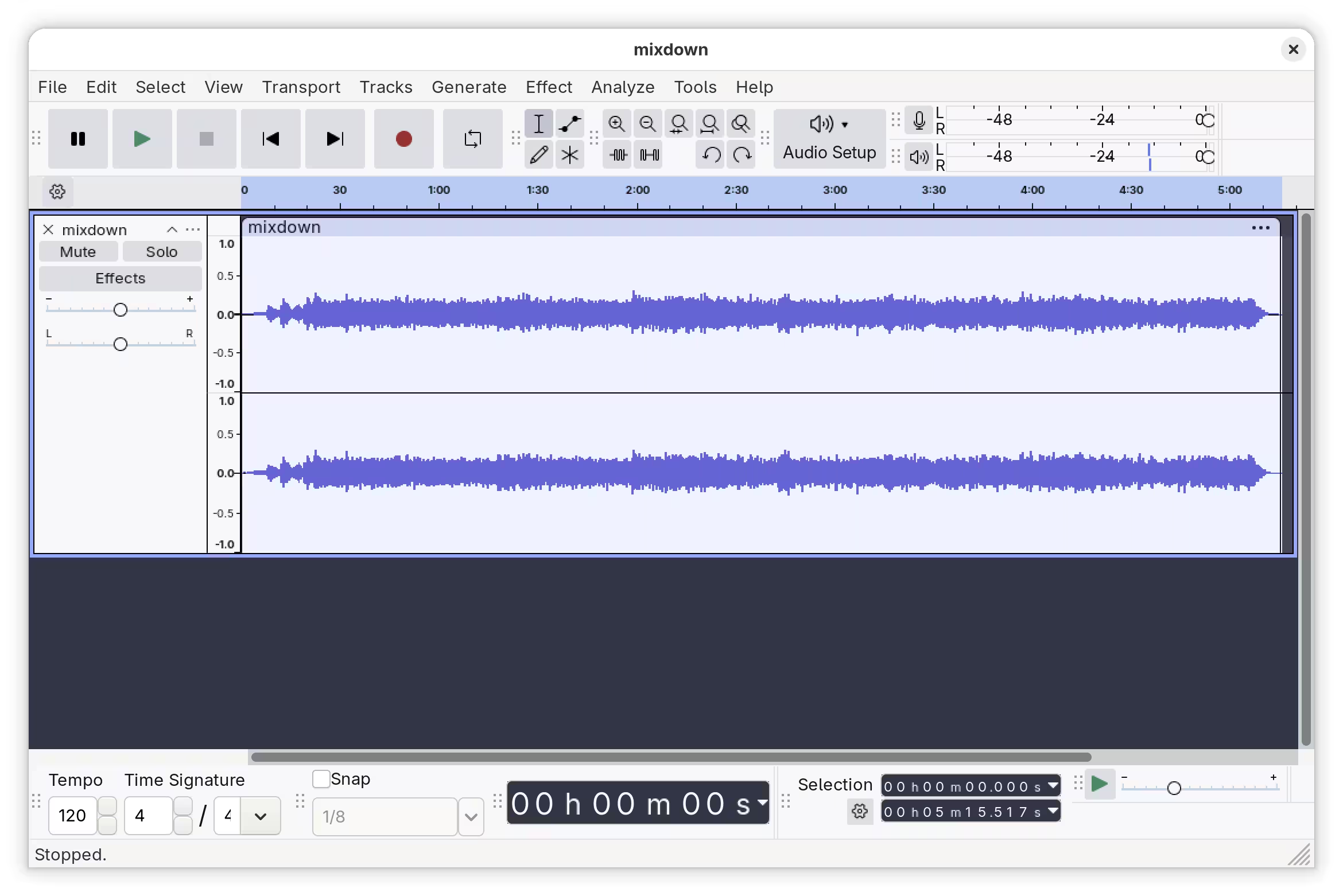
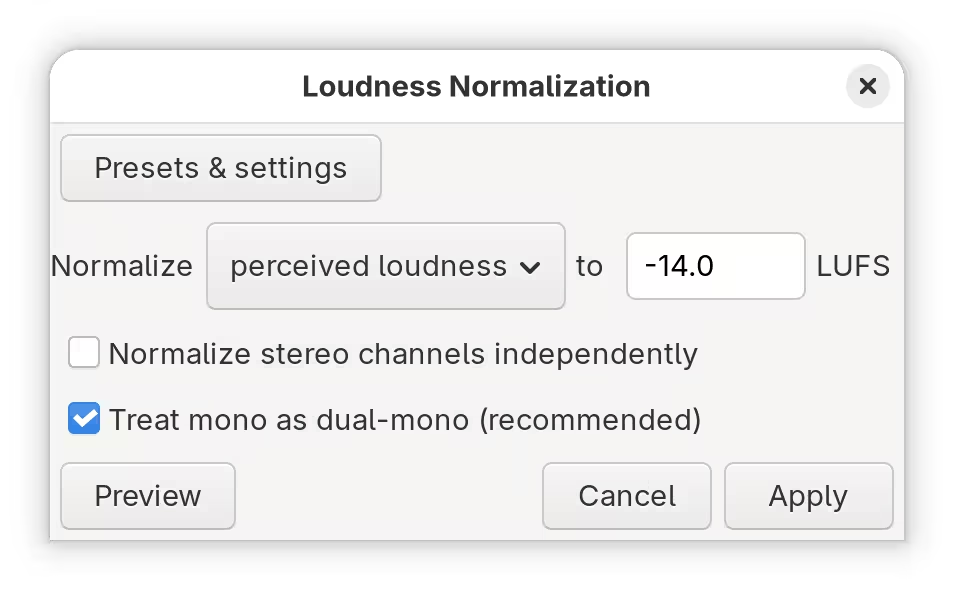
However, as I mixed the audio somewhat quietly, it was not loud enough to listen to. Ardour provided a way to normalise audio during the export process, but Zrythm lacked such a functionality. To achieve the desired loudness, I ran Audacity and performed “loudness normalization”
I also added some metadata to the audio later on, which was done with Kid3.
Editing videos
While recording the project, I also recorded some videos that were to be paired with the audio. To do the video editing, I chose DaVinci Resolve.
I have long insisted on using open software, even if it led to difficulties and lack of support. However, in this case, I was not able to find free software that can properly deal with footages that use something other than the Rec 709 standard, and given that the support for high-dynamic range itself in Wayland has been merged rather recently, I felt I do not have many choices to choose from.
Finishing up
I am all-in for seeing free alternatives to popular proprietary software become actually viable and, eventually, widely adopted (and not just be “alternatives”). It would be great to see Zrythm go such a path, but in its current stable version, it is seemingly not there just yet.
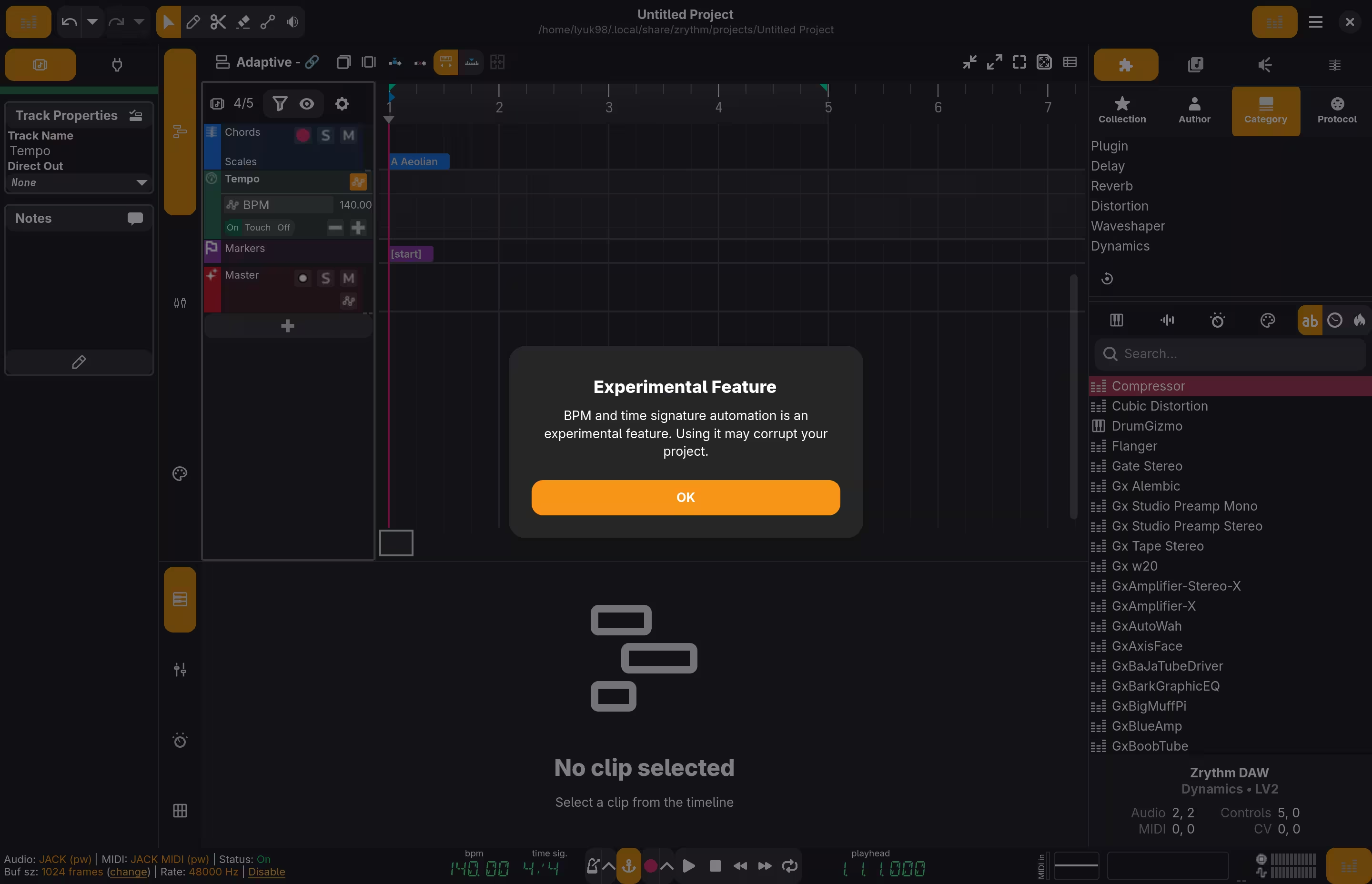
One feature I wished to see was a proper tempo and time signature automation. The application technically supports it in the current version, but upon activation, I was warned of its experimental state.
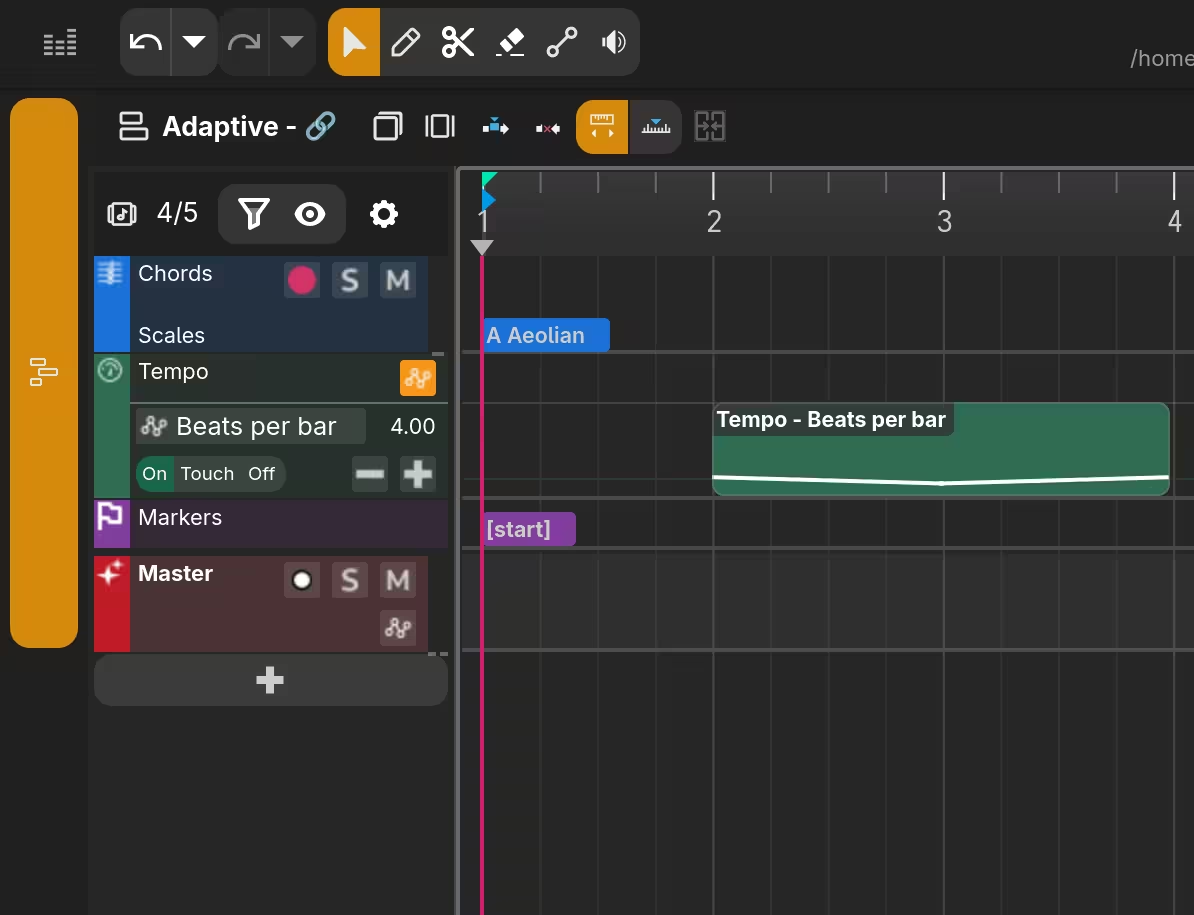
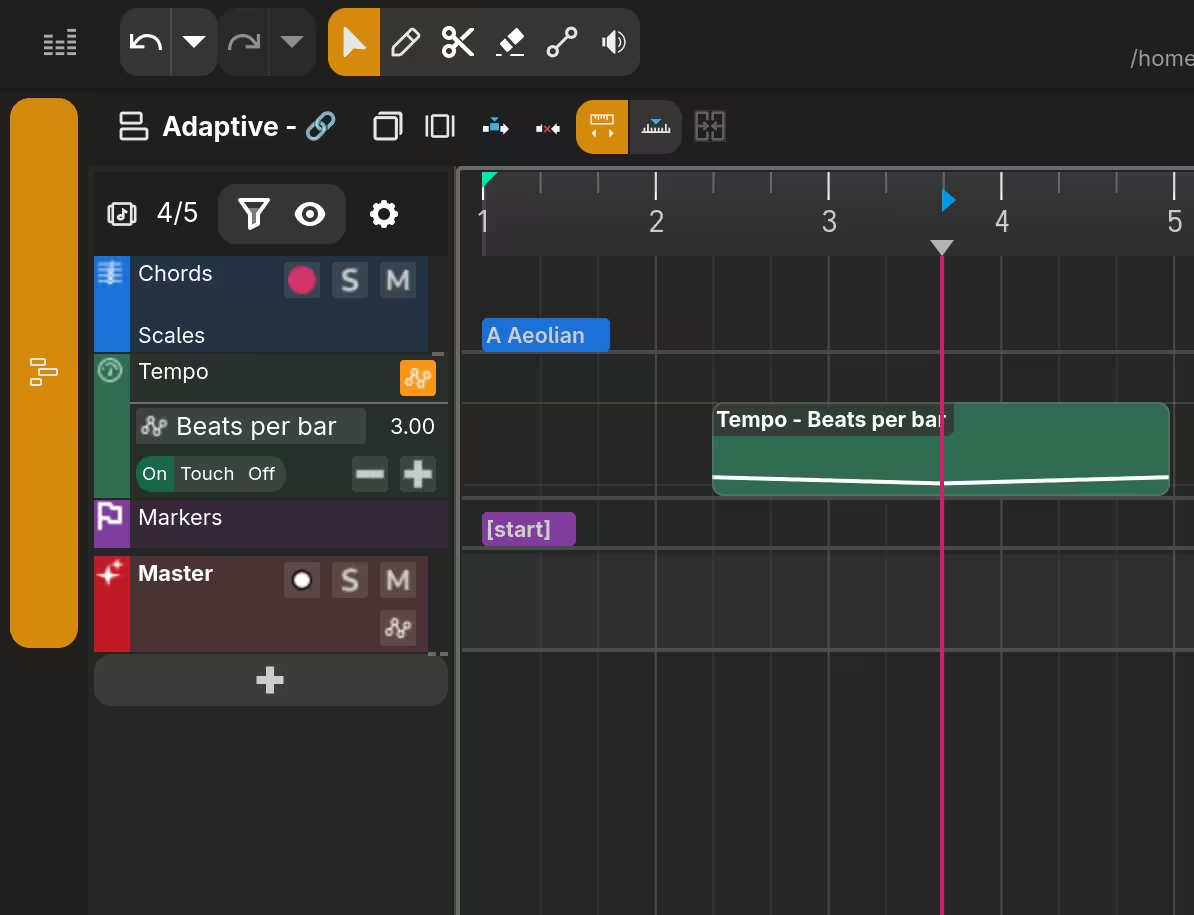
The project I worked on had changes to time signature on certain parts, and unlike my expectation, Zrythm temporarily changed the time signature of the whole song (and not just the affected parts) when the playhead went over the automated area.
| | |
|---|---|
 |
 |
Fortunately, the developers already made a better implementation for their upcoming major release.
After dealing with some limitations, I will stick to Ardour in the time being. However, when the promised v2 becomes available, I may give it another shot.